Archive for the ‘Database Administrator’ Category

It’s very difficult to be confident about the security of database environment? Because databases may contain sensitive or regulated information, critical applications or stored functions, ensuring database security is undoubtedly a number one priority. And with a number of users viewing and accessing the data, how about all those “who-what-when-where” details that might be hidden from your radar?

The increasing pressure of compliance regulations and security policies makes the deployment of high-level database protection a must-have for any organization. However, it’s generally observed, in almost 90% of cases, unnoticed changes to database configurations result in outages and security breaches.

For those looking for ways to advance database security, here are 5 SQL Server best practices to maintain database security and streamline compliance.

Tip 1: Minimize SQL server exposure and do not leave any “open doors”

We can take the first step to minimize security risks for SQL Server even before your installation is complete and fully configured. Install only required components. In the first place, when configuring your installation, remember the principle of least privilege. Running SQL Server services under an account with local Windows administrative privileges is not a good idea. In case a violator gains possession of such an account with extended privileges, the probability of unwanted outcomes increases. The risk of overall exposure can be minimized if you use a domain account with minimum required privileges instead.

It stands to reason to avoid using the default settings. Rename or disable the default system account for server administration after installation. The same is applicable to naming SQL Server instances instead of using the default instances. Changing the SQL Server port number, which is 1433 by default, will also help you minimize service and data exposure, and so will hiding SQL Server instances and/or disabling the SQL Server Browser service.

Also, do not leave anything unattended. Disable and remove everything which do not use, any unnecessary services or databases from production servers, for example, and sample or test data we may have used to verify successful installation.

Tip 2: Control who can access SQL server and how

When thinking about a user and service accounts authentication, be mindful of establishing user accountability and avoid misuse of privileged accounts. When we can choose between integrated (Windows) authentication and built-in SQL Server authentication, choose the first option whenever it is possible. Integrated authentication encrypts messages to validate users, while built-in authentication passes SQL Server logins and passwords across the network and keeps them unprotected. If you have to use built-in SQL Server authentication for application compatibility, make sure you have ensured a strong password policy.

Again, never use shared user accounts for administrators. A SQL Server administrators should have dedicated accounts with no administrative privileges in other systems. Also, make sure that each admin is using a personal user account. The same recommendation works for applications. Creating separate service accounts with descriptive names for each application that works with SQL is among security best practices

Tip 3: Plan database ownership and data security in advance

Start by identifying the needed level of protection and encryption for each database. This is an important issue when you have to deal with securing sensitive data, such as credit card numbers or patient health information, which is also a staple requirement to meet PCI or HIPAA compliance regulations. Having ensured complete visibility into what is happening across your databases, you strengthen security and streamline compliance by reducing the risk of missing suspicious activities.

When creating a database, make sure that you get all the necessary information about data confidentiality. Do not forget to assign distinct database owners, meaning that the same login should not be applied across all databases. In order to mitigate future risks, establish the same process for new database requests and approvals as well as for database retention.

Protecting database files on disk from unauthorized access and copying in real-time is highly recommended and can be done by leveraging database-level encryption with the Transparent Database Encryption (TDE) feature. In case you need to keep data encrypted in memory (until it is actively decrypted), and/or if we need to give granular users specific access to certain column or cell values, it is recommended that use cell-level encryption.

Tip 4: Regularly patch your SQL servers

The list of security best practices would not be complete without mentioning the need for proper patch management. Because attackers are actively looking for new security flaws in IT systems, and new malware and viruses appear every day, establishing proper patch management of your SQL servers should be among mandatory security practices.

A timely deployment of current versions of SQL service packs, cumulative updates and critical security hotfixes will advance the stability of database performance. It is also necessary to pay attention to regular updating of the underlying Windows Server operating system and any supporting applications, such as antivirus applications, as well.

Tip 5: Keep track of what’s going on

Finally, establishing accountability in many respects means staying up-to-date with configuration changes and user activity. This is an ongoing process of maintaining the actual state of security policies to make sure that all changes are authorized and documented.

Note: Always keep in mind that security is not a state – it is a process. Monitoring, alerting and reporting on changes must become a part of the entire data lifecycle.

Native audit logs allow us, to some extent, to check recent activities and changes affecting security, but obtaining an older view of changes made far long ago can be a challenge. Much excessive information is saved, and as a result logs very often do not contain the required data. On the contrary, change auditing can help detect unauthorized and malicious changes at early stages or show you the historical data, all of which help prevent data breaches and system downtime.

Security Requires a Thoughtful Policy : Try implementing continuous auditing to protect database environment against internal and external threats by ensuring complete visibility across databases

Happy Reading !

Recourse : dbta.com

The .WRITE clause is an integral part of the UPDATE statement. Commonly it’s used to perform a partial update on big data set of VARCHAR (MAX), NVARCHAR (MAX) and VARBINARY (MAX) data types. Its functionally is very similar to the standard STUFF statement. The UPDATE statement is logged, however, partial updates to large value data types using the .WRITE are minimally logged.
In general practice we use REPLACE or STUFF function to update partial data of a big data values.

To demonstrate this , here I am creating a test table as :

IF OBJECT_ID(‘VirendraTest’IS NOT NULL
DROP TABLE dbo.VirendraTest
GO

–Create a table as ‘VirendraTest’

CREATE TABLE dbo.VirendraTest (Details VARCHAR(MAX))|
GO

–Insert test data
INSERT INTO dbo.VirendraTest (Details)
VALUES (‘VIRENDRA YADUVANSHI – Microsoft SQL Server Database Architect | Consultant | Blogger | Specialist | DBA | Speaker’);
GO

— Check test data

Select from VirendraTest

Now, let see syntax of WRITE

.WRITE ( expression, @Offset , @Length )

 As per BOL – The .WRITE (expression, @Offset, @Length) clause to perform a partial or full update of varchar(max), nvarchar(max), and varbinary(max) data types. For example, a partial update of a varchar(max) column might delete or modify only the first 200 characters of the column, whereas a full update would delete or modify all the data in the column. .WRITE updates that insert or append new data are minimally logged if the database recovery model is set to bulk-logged or simple.

Suppose, here I want to change word ‘Microsoft’ as ‘MS’, there may be 2 options, either use of REPLACE or STUFF as

–Option 1
UPDATE VT
SET VT.Details REPLACE(Details,‘Microsoft’,‘MS’FROM dbo.VirendraTest AS VT
GO
–Option 2
UPDATE VT
SET VT.Details =STUFF(Details,CHARINDEX(‘Microsoft’,Details,1),LEN(‘Microsoft’),‘MS’)
FROM dbo.VirendraTest AS VT
GO


Now same thing with .WRITE
–UPDATE with .WRITE option
UPDATE VT SET Details.WRITE(‘MS’,(CHARINDEX(‘Microsoft’,Details,1)-1),LEN(‘Microsoft’))
FROM dbo.VirendraTest AS VT
GO
 Please do comment on this performance tips

Happy Reading!


As we know collations are used by SQL Server to compare and order strings. When working with remote SQL Server instances, the engine will correctly compare and order strings based on the remote column collation. Therefore, if remote and local columns have different collations it will result in collation conflicts. When defining a linked server, we have the option of using remote or local collation (“Use Remote Collation” in Server Options). If that option is set to true, SQL Server will try to push the ORDER BY and the WHERE clauses to the remote server. If Use Remote Collation is set to false, SQL Server will use the default collation of the local server instance. If the default collation of the local server instance do not match with the remote server column collation, this will result in poor performance. The local server will have to filter and order the data, thus having to transfer each row beforehand. It is obviously much faster to filter and order the data on the remote server. Then again, deciding to use the remote collation could lead to incorrect results.

Moreover, it is not possible to join on columns that have a different collation. The workaround is to explicitly cast the collation when querying the remote server with the COLLATE clause. But this is an expensive operation if you must scan millions of rows, especially if you need to access the column frequently. In that case, you should manually transfer the data to a local table with the proper collation. This problem can also arise on the same local database since collations are defined at the column level.

Please comments on this, Happy Reading!

As we know there are many options to import TEXT file data in a SQL Server Database table like using Import/Export Wizard, SSIS, BULK Insert command or OPENROWSET method, apart from these we can also use xp_cmdshell to import text file in a Table as,

— Create a TEMP Table

CREATE TABLE #TextData
(
Text    VARCHAR(MAX)
)

DECLARE    @sqlcmd VARCHAR(1000)

 — Reading Data

SET @sqlcmd ‘TYPE E:\Letter.txt’

INSERT INTO #TextData

EXEC master.dbo.xp_cmdshell @sqlcmd

— Displaying Result

SELECT    FROM    #TextData
GO

— Drop TEMP Table

DROP TABLE #TextData

As we know ORDER BY clause used to sort result as per specified order – where it may be ASC or DESC. Its sort the result set by specified columns. Its all depends on columns data type.

But in practical environment, sometimes we need result set in a specific order, for example some values should be always on top and its does not matter what are these values, but it should be on top of result set. For example here are some indian cities listed in ASC order as

City Name
Ahmadabad
Banglore
Bhopal
Chennai
Gorakhpur
Jaipur
Kolkatta
Lucknow
Mumbai
Nainital
New Delhi
Pune

Now we want New Delhi and Mumbai always on top in List, The syntax for same will be as

SELECT CityName FROM Table1
ORDER BY CASE WHEN CityName =‘New Delhi’ THEN ‘1’
              WHEN CityName ‘Mumbai’ THEN   ‘2’
              ELSE CityName END ASC

CityName
New Delhi
Mumbai
Ahmadabad
Banglore
Bhopal
Chennai
Gorakhpur
Jaipur
Kolkatta
Lucknow
Nainital
Pune

Happy reading!!!


Today I faced an issue where one of secondary server box is now not available due to some circumstances, now I have to delete this secondary server Name and Database entry from primary server’s database. If we go through log shipping wizard from Database property page and try to remove secondary server it will ask to connect secondary server but in my case secondary server is now not available with us. To resolve this, here is a script to delete secondary server entry from primary server’s database is: ( in this case there is no need to connect secondary server)

EXEC Master.dbo.sp_delete_log_shipping_primary_secondary

@primary_database N’VirendraTest’,
@secondary_server =  N’VIRENDRA_PC’,
@primary_database =N’LSVirendraTest’;

GO

Please don’t forget to comment on this and your experinces about it.


Sometime SQL Server error msg 8101 occurred, when anyone is trying to insert a new record into a table that contains an identity column without specifying the columns in the INSERT statement and trying to assigning a value to the identity column instead of letting SQL Server assign the value. Error displays as

Server: Msg 8101, Level 16, State 1, Line 2
An explicit value for the identity column in table “Table_Name” can only be specified when a column list is used and IDENTITY_INSERT is ON.

 The solution for above error is , we should include SET IDENTITY_INSERT ON,

Example :

SET IDENTITY_INSERT Table_name ON
Go
Insert into Table_Name (Col1,Col2,Col3,Col4)
Select Col1,Col2,Col3,Col4 from Any_Table_Name
Go

SET IDENTITY_INSERT Table_name OFF
Go


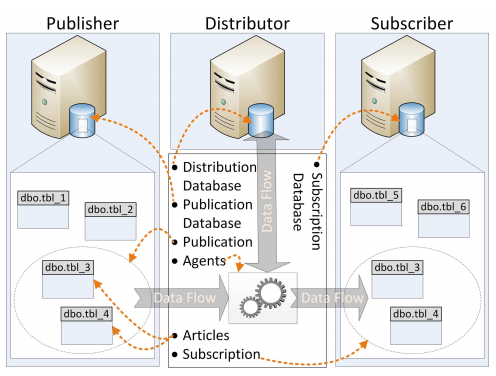
SQL Server’s Replication requires many components to replicate data from one location to another. The below image is a high-level overview of the pieces involved in a replication setup.

The components used for replication setup include a Publisher and its publication database. The publication database contains a publication that may include a number of articles. The setup also includes a Distributor and its distribution database as well as a Subscriber and its subscription database, which contains the subscription. And using replication agents data replicates as per defined architecture.

The replication components details are as below.

Articles
For each SQL Server object that should be replicated, an article needs to be defined. Each article corresponds to a single SQL Server object like tables, views, stored procedures and functions (For a complete list of objects that can be replicated, check out the topic, Publishing Data and Database Objects in SQL Server Books Online.) An article’s properties determine whether that article contains the entire object or a filtered subset of its parts. For example, an article can be configured to contain only some of the columns of a table. With some restrictions, multiple articles can be created on a single object.

Publications

A publication is a collection of articles grouped together as one unit. Every article is defined to be part of exactly one publication. But in few cases we can also define different articles on the same object in separate publications. A publication supports several configurable options that apply to all its articles. Perhaps the most important option is the one that lets you define which type of replication to use.

Publication Database

A database that contains objects designated as articles is called a publication database, when we set up a publication on a database, SQL Server modifies the inner workings of that database and creates several replication-related objects. A publication database is also protected against being dropped. A publication can contain articles from a single publication database only.

Publisher

The Publisher is a database instance that makes data available to other locations through replication. The Publisher can have one or more publications, each defining a logically related set of objects and data to replicate.

Distributor

Each Publisher is linked to a single Distributor. The Distributor is a SQL Server instance that identifies changes to the articles on each of its Publishers. Depending on the replication setup, the Distributor might also be responsible for notifying the Subscribers that have subscribed to a publication that an article has changed. The information about these changes is stored in the distribution database until all Subscribers have been notified or the retention period has expired. The Distributor can be configured on a SQL Server instance separate from the Publisher, but often the same instance takes the role of the Publisher and the Distributor.

Distribution Databases

Each Distributor has at least one distribution database. The distribution database contains a number of objects that store replication metadata as well as replicated data. A Distributor can hold more than one distribution database , However, all publications defined on a single Publisher must use the same distribution database.

Subscriber

Each SQL Server instance that subscribes to a publication is called a Subscriber. The Subscriber receives changes to a published article through that publication. A Subscriber does not necessarily play an active role in the replication process. Depending on the settings selected during replication setup, it might receive the data passively.

Subscriptions

A subscription is the counterpart of the publication. Each subscription creates a link, or contract, between one publication and one Subscriber. There are two types of subscriptions: push subscriptions and pull subscriptions. In a push subscription, the Distributor directly updates the data in the Subscriber database. In a pull subscription, the Subscriber asks the Distributor regularly if any new changes are available, and then updates the data in the subscription database itself.

Subscription databases

A database that is the target of a replication subscription is called a subscription database. As in the case of the publication database, SQL Server modifies the subscription database during the first initialization. The most obvious change is the addition of a few replication-related objects. However, unlike publication databases, SQL Server doesn’t prevent a subscription database from being dropped.

Replication agents

The replication processes are executed by a set of replication agents. Each agent is an independent Windows executable responsible for one piece of the process of moving the data. In a default installation of replication, each agent is executed by its own SQL Server Agent job. Most of those agents usually run on the Distributor, although some can run on the Subscriber. The Publisher houses replication agents only when the Publisher and Distributor are the same instance. Instead of relying on the SQL Server Agent, you can execute any replication agent manually or by some other scheduling means. However, in most cases, these approaches provide little advantage and often make troubleshooting more complex.

The details of each replication agent types as

Snapshot Agent

In all replication topologies, the Snapshot Agent provides the data required to perform the initial synchronization of the publication database with the subscription database. Transactional replication and merge replication use other agents to keep the data in sync afterwards. For both topologies, replication will use the Snapshot Agent again (after the initial synchronization) only when you request a fresh resynchronization. Snapshot replication, on the other hand, uses the Snapshot Agent exclusively to replicate data. It works by copying all the data every time from the publication database to the subscription database.

Log Reader Agent

The Log Reader Agent reads the transaction log of the publication database. If it finds changes to the published objects, it records those changes to the distribution database. Only transactional replication uses the Log Reader Agent.

Distribution Agent

The Distribution Agent applies the changes recorded in the distribution database to the subscription database. As with the Log Reader Agent, only transactional replication uses the Distribution Agent.

Merge Agent

The Merge Agent synchronizes changes between the publication database and the subscription database. It is able to handle changes in both the publication database and the subscription database and can sync those changes bi-directionally. A set of triggers in both databases support this process. Only merge replication uses the Merge Agent.

Queue Reader Agent

The Queue Reader Agent is used for bi-directional transactional replication.


Happy readying …

Sources: Fundamentals of SQL Server 2012 Replication and SQL Server Book Online

The below script will backup all user databases. Every database backup file will be generate as Database name with timestamp.

USE MASTER
GO

— Declaring a cursor named as DBName for all User database having DBID>4

DECLARE DBName Cursor FOR
Select Name as DatabaseName from sys.sysdatabases 
where dbid >4
OPEN DBName
DECLARE @dbName varchar(100);
DECLARE @backupFolder varchar(100);
DECLARE @backupcommand varchar(500);
Set @backupFolder ‘F:\DBBackup\Full\’
FETCH NEXT FROM DBName INTO @dbName
While (@@FETCH_STATUS <>1)
BEGIN
Set @backupcommand =‘Backup Database ‘+ @dbName +‘ to Disk = ”’+ @backupFolder + @dbName +‘_[‘+REPLACE(Convert(varchar,Getdate(), 109),‘:’, ‘-‘)+ ‘].Bak”’
–Print @backupcommand
EXEC (@backupcommand)
Fetch NEXT FROM DBName INTO @dbName
END
CLOSE DBName
DEALLOCATE DBName
GO


Sometimes with SQL server a DBA or Developer might be faced an error saying “The transaction log for database is full” OR “Could not allocate space for object because the filegroup is full” OR may be as “Primary filegroup is full” There may be many reason for same but most probable error is related to Data/log file’s AUTOGROWTH option definition at the time of database creation. To resolve this issue commonly DBA may perform a shrink log operation and do changes with the DATA/LOG files AUTOGROWTH/MAXSIZE option. Here is a script to find out all databases’s files AUTOGROWT values as

SELECT DB_NAME(MF.DATABASE_IDAS DBNAME,MF.NAME AS FILENAME ,SIZE/128.0 AS CURRENTSIZE_MB,DB.RECOVERY_MODEL_DESC RECOVERYMODEL, MF.TYPE_DESC AS ‘FILE TYPE (DATA/LOG FILE)’,
CASE WHEN IS_PERCENT_GROWTH = 0 THEN LTRIM(STR(MF.GROWTH * 8.0 / 1024,10,1))+’ MB, ‘ELSE ‘BY ‘+ CAST(MF.GROWTH AS VARCHAR) +’ PERCENT, ‘END + CASE WHEN MAX_SIZE =1 THEN ‘UNRESTRICTED GROWTH’ ELSE ‘RESTRICTED GROWTH TO ‘ +LTRIM(STR(MAX_SIZE * 8.0 / 1024,10,1)) + ‘ MB’ END AS AUTOGROW, MF.PHYSICAL_NAME

FROM SYS.MASTER_FILES MF INNER JOIN SYS.DATABASES DB ON MF.DATABASE_ID =DB.DATABASE_ID
ORDER BY MF.SIZE/128.0 DESC